
Set up Boxanza in 5 minutes
Watch the setup video, follow the quick steps, or search the answers below. It’s the same help you’ll find on the Help tab inside the app.
Watch the video guidesWatch how it works
Jump to a step:
Jump to a step:
Jump to a step:
From install to your first box
- Pick your plan
- Name your bundle page
- Choose a collection
- Pick a deal
- Add it to your store and press Save
- Send shoppers to the page
- Add it to your menu
Get an instant answer
Type a word and the answers below filter as you go.
Common questions
How long does setup take?
About 5 minutes. Name your bundle, pick a collection, pick a deal, then press Save in the theme editor. Boxanza creates the bundle page for you. The setup video above shows every click.
Where is my bundle page?
Boxanza creates it for you at yourstore.com/pages/boxanza-bundle (or /pages/build-a-bundle if that page was empty). The Setup guide shows the exact address and a Copy page link button.
How do shoppers find the page?
Add it to your menu: Content > Menus > Main menu > Add menu item, type a label like Build Your Box, pick the page under Pages, then Save. You can also add the Build-a-Bundle promo card to your home page from the Setup guide.
Can I have more than one bundle?
Yes. Free includes 1 bundle, Starter 5, and Growth and up are unlimited. Each bundle has its own collection and deal. Give each one its own page with Create a page for this bundle, or put more than one Boxanza block on a page and pick each block's bundle collection in the theme editor. Shoppers can buy several boxes in one order, and each box gets its own discount.
Can each bundle have its own page?
Yes. On the My bundles tab, press Create a page for this bundle on any bundle card. Boxanza makes a published page that shows that bundle, with no theme editing needed. The card then shows a View page link. If the page looks empty, the card shows a Turn on Boxanza button: it opens your theme editor with Boxanza switched on, you press Save, and every bundle page works from then on.
Which plans are there?
Free: 1 bundle, up to $500 a month in bundle sales. Starter, $24 a month: 5 bundles, up to $5,000. Growth, $59 a month: unlimited bundles, up to $15,000. Scale, $99 a month: up to $30,000. Pro, $159 a month: no limit. Prices are in US dollars. Paying yearly saves about 30%, and every paid plan starts with a 14-day free trial.
Is there a free plan?
Yes. Free includes 1 bundle on real orders, up to $500 a month in bundle sales, and every feature. No credit card needed.
How does the free trial work?
Every paid plan starts with a 14-day free trial. Shopify only bills you after the trial, and you can switch back to Free any time before that.
What happens if I go over my plan's limit?
Your bundles keep working for shoppers. You will see a note on the Home tab suggesting a plan with more room. Nothing breaks mid-sale.
How do I change or cancel my plan?
Press Change plan at the top of the app. Pick a new plan or Free. Uninstalling the app also cancels billing automatically through Shopify.
What kinds of deals can I offer?
Three kinds: % off (for example 15% off 3 items), Amount off (for example $10 off 3 items) or Box price (for example 3 for $40). Pick one for each bundle in the bundle editor. A bigger box always gives the same or a better deal.
Do prices work in other currencies?
Yes. You enter prices and amounts in your store currency. Shoppers who browse in another currency see converted amounts, and the box, the cart and checkout always match.
How are discounts applied?
At checkout, by Shopify itself. Shoppers do not need a code. The discount covers only products from the bundle's collection, and the highest tier they reach is applied.
Does it work with my other discounts?
Yes. Bundle savings combine with free shipping and order discount codes. If you already run another bundle or product discount on the same items, Shopify applies whichever saves the shopper more, never both. So if your own deal is bigger, the cart shows your deal instead of the Boxanza one.
How do bundle orders show up in my Orders?
Like any other order. Each product in the box is its own line item with the bundle discount on it, so you pick, pack and track stock exactly the way you do now. Nothing new to learn.
Where do I see my bundle sales?
On the Home tab in Boxanza: your bundle sales this month, how much room is left on your plan, and your average order with a bundle compared to without one.
Will Boxanza slow down my store?
No. It is built to stay light. On newer themes the builder only loads on the pages that show it, and product photos load as shoppers scroll. On older themes with the classic switch on, a small script loads with your pages but only builds the box on your bundle page.
Does it work on phones?
Yes. It is made for phones first. A bar at the bottom of the screen shows the box filling up and the savings growing, and the Phone preview in the bundle editor shows exactly what shoppers see.
Can shoppers pick sizes, colours or flavours?
Yes. For products with options, shoppers choose the one they want right on the product tile, and every choice counts toward the box.
Will Boxanza change or break my theme?
No. It is a standard Shopify app section. Nothing changes for shoppers until you press Save in the theme editor, and removing the section leaves your theme exactly as it was.
How do I change colours, wording or the headline?
Theme editor > open your bundle page > click the Boxanza section. Headline, words, colour theme and badges are all there. No code. The Customize your bundle video above shows each setting.
Can I try it on a draft theme first?
Yes. Online Store > Themes > three dots next to a draft theme > Edit theme. Open your bundle page from the top page menu, then Add section > Apps > Boxanza, and Save.
If something looks off
My bundle page is still empty after pressing Save
You are probably on an older (vintage) theme, like Debut or Brooklyn, that can't hold app sections. On the Setup guide, press Turn on for classic themes, switch on Boxanza, then press Save. The Older themes section below shows each click. Still stuck? Email slagpourstudio@gmail.com and we'll set it up with you.
The builder is not showing on my page
1. Open the Setup guide and press Check again. 2. If it says Boxanza is not on your page, press Add to my live theme and then press Save (top right) in the theme editor. Closing the editor without Save is the most common cause. 3. Make sure you are viewing the bundle page, not your home page.
The discount did not apply in the cart
1. Check the box has at least the first tier's number of items (for example 3). 2. Only products from the bundle's collection count. 3. Make sure the bundle is switched on (My bundles tab, Live on my store). 4. Savings show at checkout. Some themes only show them there, not in the cart drawer.
The editor opened on the wrong page
Press Add to my live theme again from the Setup guide. It always opens your bundle page. You can also pick the page from the page menu at the top of the theme editor.
Some products are missing from the builder
The builder shows up to 60 in-stock products from the collection. Sold-out or draft products are hidden. Check the products are active, in stock and available on your Online Store sales channel.
I made changes but shoppers don't see them
Changes in the theme editor only go live after you press Save. Changes to your deal on the My bundles tab are live right away. Refresh your store page to see them.
I want to remove Boxanza
In the theme editor, click the Boxanza section and remove it, then Save. To remove the app, go to Settings > Apps and uninstall. Billing stops automatically and your theme is left as it was.
Using a classic theme? 3 clicks
Older "vintage" Shopify themes, like Debut, Brooklyn, Narrative, Venture, Simple, Minimal, Supply and Boundless, can't hold app sections. If your bundle page is still empty after you press Save in the theme editor, turn on Boxanza for classic themes:
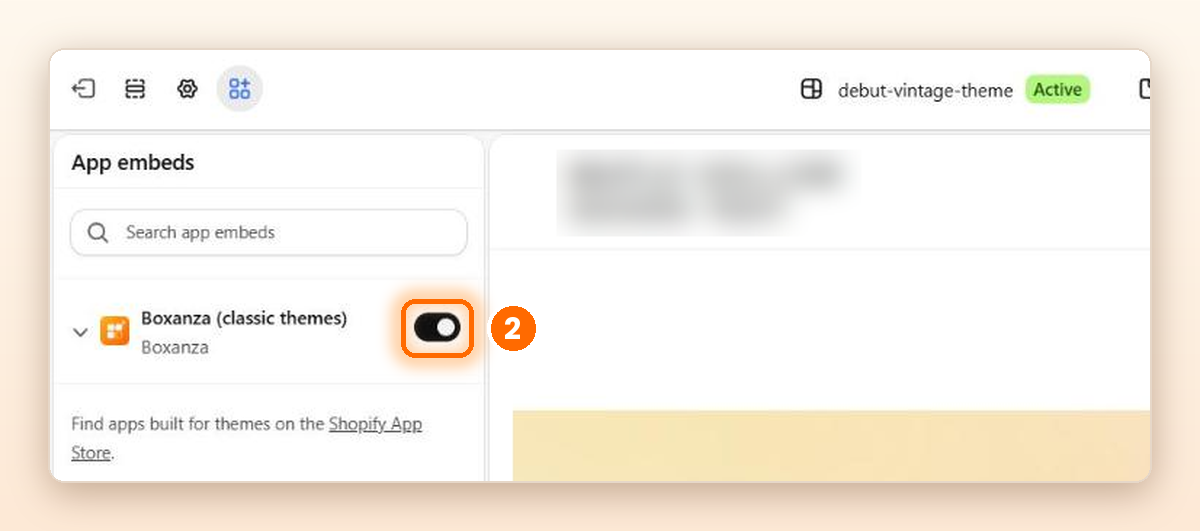
- Open App embeds. On the Setup guide, press Turn on for classic themes. The theme editor opens on App embeds.

- Switch on Boxanza.
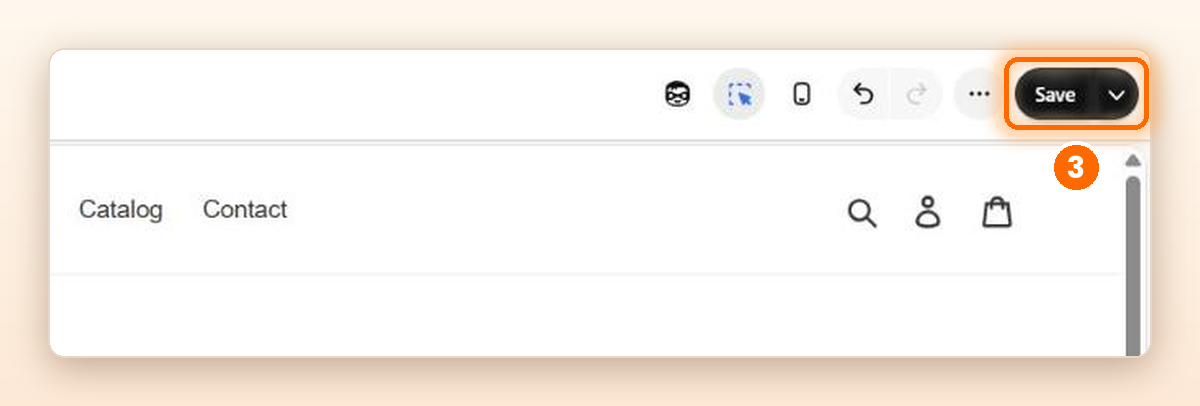
- Press Save at the top right of the theme editor.
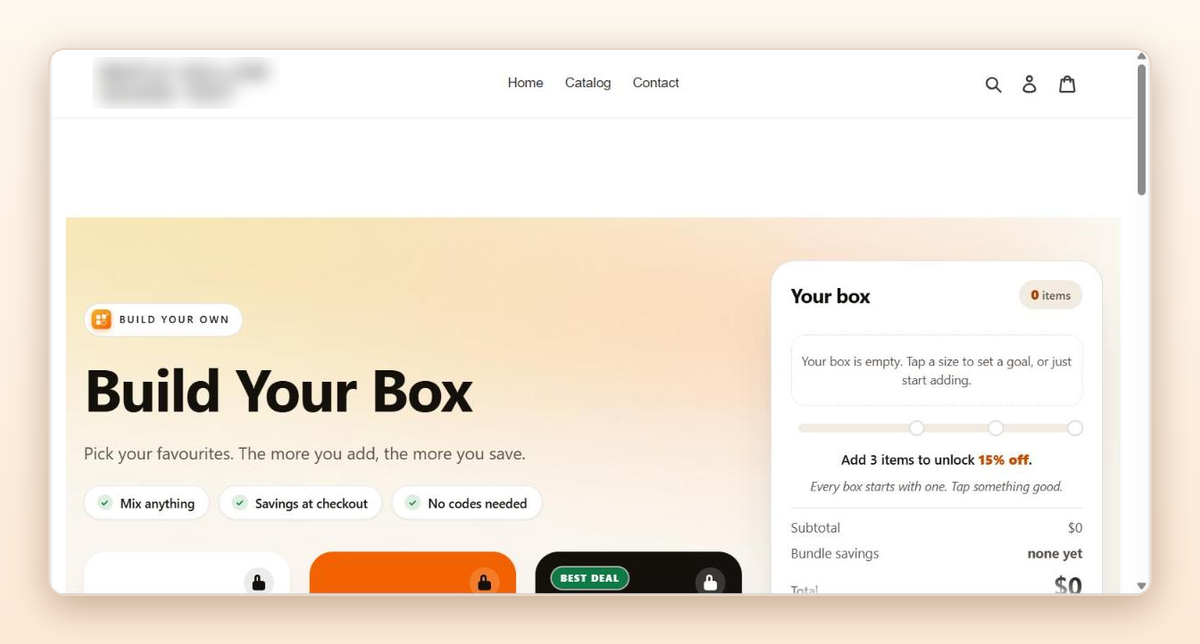
Done. Your bundle page shows the builder:
Not sure which theme you have? It's safe to turn on for any theme. If Boxanza is already on your page, it stays out of the way, so shoppers never see two.
We’re happy to help
Priority support, same business day, on every plan, Free included.